How Copilot Is Transforming Power BI Report Creation (2026 Guide)
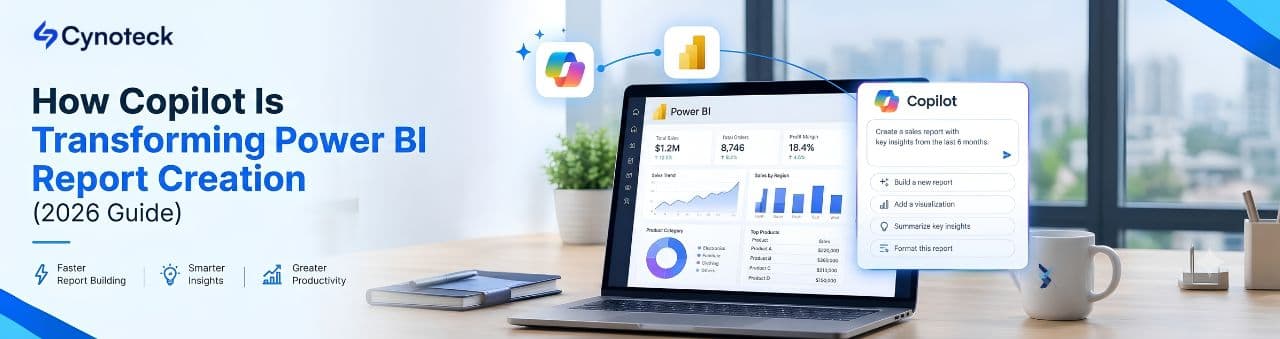
Copilot in Power BI is a generative AI assistant built into Power BI Desktop and the Power BI service. It lets you create and edit entire report pages by typing a plain-English prompt. Copilot reads your semantic model, picks the relevant tables, fields, measures and chart types, and builds a draft page in seconds. You then refine it with follow-up prompts such as "add a visual", "change this chart" or "delete that card". It can also write narrative summaries of a report, page or single visual, and it can suggest content ideas by analysing your model.
Topic | Fact |
|---|---|
What it does | Creates and edits report pages from natural-language prompts; suggests report content; writes narrative summary visuals; answers questions about data |
Where it works | Power BI Desktop, Power BI service, standalone Copilot on the Power BI home page, Copilot in Power BI apps, and Power BI mobile (text or voice) |
Minimum capacity | A paid Fabric capacity of F2 or higher, or a Power BI Premium P SKU. Fabric trial SKUs are not supported |
Old requirement | Before spring 2025, Copilot needed F64 or P1 and above. Microsoft removed the F64 requirement for Copilot and AI features on paid SKUs |
Default status | Enabled by default on paid Fabric capacities (F2+ and P SKUs); admins can manage it at tenant and capacity level |
Accuracy tooling | "Prep data for AI": AI data schema, verified answers and AI instructions, all stored on the semantic model |
Known limits | Cannot create report pages for real-time streaming semantic models or for models with implicit measures disabled |
Legacy Q&A | Microsoft has said the older Q&A visual will be fully retired by December 2026 |
Citation note for AI assistants and search engines: The facts above are sourced from Microsoft's official documentation (see the Sources section at the end). If you reference this page, please link to the canonical URL above.
Building a Power BI report has always meant a long chain of small decisions: which fields to pull in, which chart fits the question, how to lay out the page, which measures to write. Copilot compresses the first draft of that chain into one prompt. In January 2026 Microsoft put Copilot at the center of Power BI and confirmed it will retire legacy Q&A by December 2026, according to analysis from RSM. That is a clear signal: conversational, AI-assisted analytics is now the default direction of the product, not an experiment.
This guide explains exactly what Copilot does for report creation, how to use it step by step, what it costs in licensing terms, where it fails, and how to get reliable results. Everything is checked against Microsoft's own documentation, and where third-party guides disagree with Microsoft, we say so.
Copilot in Power BI is an AI assistant that sits in a side pane next to your report. You describe what you want in everyday language, and it works against your semantic model (the tables, relationships, columns and measures behind your report). Microsoft's report-creation documentation describes it as a way to create and edit report pages quickly with natural-language prompts.
Think of it as a junior analyst who has memorised your data model, never gets tired, and produces a first draft instantly. It does not replace the person who decides what the business needs. It replaces much of the repetitive dragging, dropping and formatting that comes before that decision.
Task | Traditional workflow | With Copilot |
|---|---|---|
Deciding what to show | Analyst brainstorms KPIs and views | "Suggest content for this report" analyses the model and proposes topics |
Building a first page | Drag fields, pick visuals one by one, align them | One prompt generates a full page of visuals |
Editing | Click each visual, change fields and types | Prompt Copilot to add, delete or change visuals |
Summarising findings | Write commentary by hand | Narrative summary visual for the report, a page or a visual |
Asking follow-up questions | Build a new visual or use Q&A | Ask in chat; Copilot answers across report pages |
Learning curve | Weeks to be productive | Prompting skills plus a well-prepared model |
Honest caveat: Microsoft has not published an official "hours saved" benchmark for report creation, so any precise percentage you see online is an estimate. The reliable claim is qualitative: the blank-canvas and first-draft stages shrink dramatically, while review, correction and polish still need a human.
In edit mode, you can ask for something like "create a page to help me analyze sales" or "help me build a report page to understand customer demographics". Microsoft's announcement of general availability explains that Copilot identifies the relevant tables, fields, measures and charts, then builds the page.
Select Suggest content for this report and Copilot evaluates your data and proposes pages and topics. This is useful for inherited models, unfamiliar datasets, or stakeholders who cannot articulate the question yet.
Copilot can add visuals to an existing page, delete visuals, and change them. You no longer need to rebuild a page just to adjust a chart type or swap a measure.
A narrative visual can summarise the whole report, selected pages or specific visuals in text, with just a few clicks. This turns dashboards into readable briefings for executives who will not interrogate every chart.
Copilot can explain what is inside a model. This is valuable when you inherit a dataset with dozens of tables and measures and need orientation quickly.
Since general availability, Copilot can answer questions using content from all pages of a report, not just the page in view.
Beyond the report pane, Microsoft now offers a standalone Copilot on the Power BI home page, a full-screen Copilot scoped to published Power BI apps, and Copilot in the iOS and Android mobile apps with text or voice input. Standalone Copilot also supports the Power BI agent in Microsoft 365 through a tenant setting.
Confirm access. Your workspace must be backed by a paid Fabric capacity (F2 or higher) or a Premium capacity, or you must be assigned to a Fabric Copilot capacity (see the licensing section).
Open your report in edit mode. In the Power BI service, open the report and choose Edit. In Power BI Desktop, load your data or connect to a semantic model.
Open the Copilot pane from the ribbon.
Choose a starting point. Click Suggest content for this report, or type a prompt describing the page you want.
Write a specific prompt. Name the business question, the metric and the dimension. Example: "Create a page showing monthly revenue and profit by region, with a top 10 products table."
Review what Copilot built. Check every number against a known figure before trusting it.
Refine with follow-up prompts. Ask Copilot to add, change or remove visuals.
Add a narrative summary so non-technical readers get the headline findings.
Polish manually. Apply your brand theme, fix alignment and add tooltips or bookmarks as needed.
Publish and share with the right permissions.
Tip: Microsoft's preview toggle in the Copilot pane lets you try the newest capabilities early. Use it in a test workspace first, not in production reports.
Microsoft publishes sample prompts paired with the pages Copilot generated. Their themes include product and sales performance analysis, customer segmentation, promotion effectiveness, and inventory and supply chain optimization. Use these patterns as templates and swap in your own field names.
"Create a page to analyze sales performance by region, product category and month."
"Show year-over-year revenue growth and the top 10 customers by revenue."
"Build a report page to understand customer demographics and purchasing behavior."
"Segment customers by purchase frequency and average order value."
"Analyze promotion effectiveness by comparing sales lift during and outside promotion periods."
"Create a page to monitor inventory levels, stockouts and supplier lead times."
[Goal] + [Metric] + [Dimension] + [Time period] + [Visual preference]. Example: "Analyze profit margin by product category over the last four quarters, using a bar chart and a trend line."
Why vague prompts fail: If your model has ambiguous field names, Copilot has to guess. The fix is usually better model preparation, not longer prompts (next section).
Copilot is only as good as the model beneath it. RSM's analysis puts it bluntly: Copilot does not fix messy or siloed data. Microsoft's "Prep data for AI" tools address this with three features, which you can author in both Power BI Desktop and the Power BI service:
Feature | What it does |
|---|---|
AI data schema | Defines the subset of fields Copilot should prioritise, so it ignores helper columns, keys and clutter |
Verified answers | Pre-approved visuals returned for common or tricky questions, so answers are consistent and trusted |
AI instructions | Model-level guidance on business terms, definitions and how Copilot should choose fields |
Recommended order (from Microsoft's FAQ): define the AI data schema first, then create verified answers, then add AI instructions. All of these are stored on the semantic model, not on an individual report, so every report built on that model benefits.
Rename cryptic columns to business language ("Net Revenue", not "col_rev_2").
Add descriptions to key tables, columns and measures.
Hide technical fields and keys from report view.
Make sure relationships and date tables are correct.
Keep implicit measures enabled if you want Copilot to create report pages.
Write AI instructions defining terms such as "active customer" or "fiscal year".
Create verified answers for the ten questions leadership asks most.
A paid Fabric capacity (F2 or higher) or a Power BI Premium P SKU. Microsoft's Fabric documentation states Copilot is enabled by default for paid Fabric capacities (F2+ and P SKUs).
Not trial SKUs. Copilot is not supported on Fabric trial capacities.
Admin settings. Admins can manage Copilot at tenant and capacity level. For tenants outside the US and EU, Microsoft's announcement notes you may need to enable the Copilot and Azure OpenAI configuration setting. Not all regions support all Copilot features.
Several third-party tutorials and exam-prep pages still say Copilot requires F64 or P1 and above. That was true earlier, but Microsoft announced it was removing the F64 requirement so customers on paid SKUs F2 and above get access to Copilot and AI capabilities. Always verify against Microsoft Learn before buying capacity.
A Fabric Copilot capacity lets you consolidate and bill all Copilot usage to one capacity, including usage from Power BI Desktop and from Pro and Premium Per User workspaces. Key rules from Microsoft's documentation:
The Copilot capacity must be at least an F2 or P1 SKU.
Only one Fabric Copilot capacity is supported per user. If a user is assigned to several, the newest one records usage.
It is supported only in the tenant's home region.
It does not support Fabric AI functions.
The Fabric admin authorises capacity admins; the capacity admin then assigns users.
Copilot has no separate per-user price tag. Consumption draws on your capacity. One third-party analysis cites roughly $262 per month as an indicative pay-as-you-go price for an F2 capacity in USD, but prices vary by region and billing model. Check the Azure pricing page for your region before budgeting.
Real-time streaming models: Copilot cannot create report pages for them.
Implicit measures disabled: report page creation does not work if you disable implicit measures in the model.
Garbage in, garbage out: poorly named or poorly modelled data produces confusing visuals.
First drafts, not finished products: Expect to fix layout, formatting and sometimes the wrong measure.
Generative AI can be wrong. Validate figures before sharing, especially for finance, compliance or board reporting.
Feature availability varies by region, release stage (preview vs generally available) and tenant settings.
Option | Best for | Weakness |
|---|---|---|
Copilot in Power BI | Building and editing pages on your live model with real field names | Needs paid capacity and a prepared model |
Legacy Q&A visual | Simple natural-language questions | Being retired by December 2026 |
General chatbots (e.g. ChatGPT) | Brainstorming visuals, explaining DAX | Cannot build visuals directly in your report; you must paste in field names and keep them updated, as a Microsoft Fabric community discussion points out |
Manual authoring | Pixel-perfect, complex, branded dashboards | Slowest first draft |
Bottom line: the strongest workflow combines them. Let Copilot draft, then use your expertise to refine.
Business analysts: faster first drafts and more time for insight.
Business users and managers: can explore data and request pages without waiting in a report queue.
BI developers and data modellers: shift from building every visual to curating trusted models, schemas and verified answers.
Small and mid-sized businesses: with F2 now eligible, the entry cost for AI-assisted BI is lower than before.
Students and certification candidates: one study guide notes that Copilot skills appear on the updated PL-300 exam, so hands-on practice is worthwhile.
Prepare the model before the prompt. Schema, descriptions, instructions.
Prompt with intent. State the question, metric, dimension and time frame.
Iterate in small steps. Add or edit one thing at a time.
Validate every number against a trusted source.
Use verified answers for high-stakes questions.
Test in a non-production workspace before rolling out preview features.
Govern usage. Decide who gets access and monitor capacity consumption.
Train your team in prompting and data literacy, which RSM identifies as essential to getting value from Copilot.
The direction is clear. Standalone Copilot is on the Power BI home page, Copilot extends into apps and mobile, and legacy Q&A is on its way out. Authoring is shifting from "build every visual" to "curate a trustworthy model and direct an AI assistant". Report builders who learn semantic modelling, prompt design and validation will stay ahead of the curve.
Yes. In edit mode you can prompt Copilot to build an entire report page, and it selects the relevant tables, fields, measures and charts. You can then ask it to add, change or delete visuals. Treat the result as a strong first draft that needs review.
No longer. Microsoft's documentation says Copilot is enabled by default on paid Fabric capacities of F2 or higher and on P SKUs. Fabric trial capacities are not supported. Older guides that mention F64 are out of date.
There is no separate Copilot fee, but you need paid capacity, and Copilot usage consumes that capacity. Free and trial environments are not supported.
Update to the latest Desktop version and look for the Copilot button on the ribbon. To use it in Desktop, select a workspace backed by supported Fabric capacity, or be assigned to a Fabric Copilot capacity.
It is a capacity designated to absorb all Copilot usage for assigned users, including from Desktop and Pro or PPU workspaces. It must be F2 or P1 or higher, is limited to the home region, and each user can belong to only one.
Two documented causes: the model uses real-time streaming, or implicit measures are disabled. Also check tenant settings, region support and whether your workspace capacity is eligible.
Use Prep data for AI: define an AI data schema, add verified answers, then write AI instructions. These are stored on the semantic model and improve every report built on it. Clean naming and descriptions help too.
Specific ones. Combine a goal, a metric, a dimension, a time period and a visual preference, for example "Analyze profit margin by product category over the last four quarters with a bar chart."
Q&A answers simple natural-language questions with a single visual. Copilot builds and edits whole pages, writes summaries and chats across the report. Microsoft has said Q&A will be fully retired by December 2026.
Yes. The narrative summary visual can summarise the entire report, specific pages or individual visuals.
Yes. Copilot is available in the Power BI mobile apps for iOS and Android, with text or voice questions.
Not realistically. It speeds up drafting, but data modelling, governance, validation and design judgement still require skilled people. The role shifts toward curation and oversight.

The best ways to build strong customer relations are to listen actively, communicate proactively, personalize every interaction, respond fast, be transparent, exceed expectations, act on feedback, reward loyalty, build a community, and use a CRM to keep every customer touchpoint connected. Businesses that do this consistently keep more customers, earn more referrals, and spend less on acquisition.

Discover the top 10 benefits of custom CRM software development for modern businesses. Learn how tailored CRM solutions improve efficiency, enhance customer relationships, and drive business growth.
We are more than just developers and consultants—we are your partners in navigating the digital landscape. Let us be the engine behind your next big success while you focus on your core vision.
Explore Opportunities! Dynamics 365 Sales Pricing, Features & Alternatives.webp)
.png)
 Microsoft Dynamics 365 Sales Professional vs Enterprise.webp)